This registry file for thumbnails
http://gidon.reid.googlepages.com/AVCHDthumbnails.reg
Windows Registry Editor Version 5.00
[HKEY_CLASSES_ROOT\.mts\ShellEx\{BB2E617C-0920-11D1-9A0B-00C04FC2D6C1}]@="{c5a40261-cd64-4ccf-84cb-c394da41d590}"
[HKEY_CLASSES_ROOT\.m2t\ShellEx\{BB2E617C-0920-11D1-9A0B-00C04FC2D6C1}]@="{c5a40261-cd64-4ccf-84cb-c394da41d590}"
[HKEY_CLASSES_ROOT\.m2ts\ShellEx\{BB2E617C-0920-11D1-9A0B-00C04FC2D6C1}]@="{c5a40261-cd64-4ccf-84cb-c394da41d590}"
Doesn't seem to work straight away, even after a reboot. But on importing from camcorder began to work!
Can force it to start working by deleting thumbnail cache.
In Vista run disk cleanup (type "cleanup" from start). Select "thumbnails" and delete.
Monday, 8 December 2008

Friday, 7 November 2008
Internlet connection sharing ...
Enabling on XP and connecting to from Vista using wireless connection:
First I established an ad-hoc wirelss network using Vista:
Network sharing centre Set up connection or network Setup wireless ad hoc
Give it name and I disabled security in this case.
Now you should be able to connect to this network from XP machine.
Now enable ICS on XP machine - right click Internet connection (not wireless) and select properties. Then in the Advanced tab tick share this connection. Think I also shared files etc. This gives the other connection - the wireless connection a static IP address 192.168.0.1. And this is the gateway (and DHCP server) for the other client machines (but this happen automcatically on the client machines)
That should be it - you can watch the connection in the Network Sharing Centre to see if you get Internet - and it'll prompt you for what sort of network this is.
First I established an ad-hoc wirelss network using Vista:
Network sharing centre Set up connection or network Setup wireless ad hoc
Give it name and I disabled security in this case.
Now you should be able to connect to this network from XP machine.
Now enable ICS on XP machine - right click Internet connection (not wireless) and select properties. Then in the Advanced tab tick share this connection. Think I also shared files etc. This gives the other connection - the wireless connection a static IP address 192.168.0.1. And this is the gateway (and DHCP server) for the other client machines (but this happen automcatically on the client machines)
That should be it - you can watch the connection in the Network Sharing Centre to see if you get Internet - and it'll prompt you for what sort of network this is.
Friday, 2 May 2008
Backing up / restoring Windows Media Player 11 library
I had to rebuild my PC recently and was forced to recreate my music library with all its tracks and library art. WMP doesn't appear to offer any backup utility for this which is odd. Anyhow this is the process I followed to restore everything as was.
I made things easy by doing a full backup image of my C drive before rebuilding my system (with a previous image) - I use True Image (v.11) for this. With my new system updated, I installed WMP v.11. I then went into my True Image and restored the following files and folders from this location:
C:\Documents and Settings\UserName\Local Settings\Application Data\Microsoft\Media Player
CurrentDatabase_360.wmdb
Art Cache (Folder)
wmpfolders.wmdb
CurrentDatabase_59R.wmdb
These last two I'm not sure are needed but the first two certainly are. Bingo - everything loaded up in WMP as was - phew!
Make sure of course all your actual media files are in the same place as they were (mine are all stored on a removeable USB drive).
But then I had a problem actually seeing the music on my Pinnacle Homemusic network player. It connected fine but would show "0 items" when I tried to play anything. After searching the Roku newsgroups, found this suggestion:
Try Removing and Adding back monitored folders
1. Open windows media player
2. Go to Library
3. Remove the folders that Windows Media is watching for content
4. Quit WMP11 5. Re-open WMP11, and add your music folders back
I first made sure the Rip musc folder was correct (it wasn't). And then checked this folder was monitored - it was after selecting as Rip folder. I deselected everything else and when I ok'ed the dialog box it checked 1000 odd tracks. After it'd done this I exited and reloaded WMP and reconnected to the Pinnacle box - and it worked!
I made things easy by doing a full backup image of my C drive before rebuilding my system (with a previous image) - I use True Image (v.11) for this. With my new system updated, I installed WMP v.11. I then went into my True Image and restored the following files and folders from this location:
C:\Documents and Settings\UserName\Local Settings\Application Data\Microsoft\Media Player
CurrentDatabase_360.wmdb
Art Cache (Folder)
wmpfolders.wmdb
CurrentDatabase_59R.wmdb
These last two I'm not sure are needed but the first two certainly are. Bingo - everything loaded up in WMP as was - phew!
Make sure of course all your actual media files are in the same place as they were (mine are all stored on a removeable USB drive).
But then I had a problem actually seeing the music on my Pinnacle Homemusic network player. It connected fine but would show "0 items" when I tried to play anything. After searching the Roku newsgroups, found this suggestion:
Try Removing and Adding back monitored folders
1. Open windows media player
2. Go to Library
3. Remove the folders that Windows Media is watching for content
4. Quit WMP11 5. Re-open WMP11, and add your music folders back
I first made sure the Rip musc folder was correct (it wasn't). And then checked this folder was monitored - it was after selecting as Rip folder. I deselected everything else and when I ok'ed the dialog box it checked 1000 odd tracks. After it'd done this I exited and reloaded WMP and reconnected to the Pinnacle box - and it worked!
Thursday, 24 January 2008
Editing PDF files in PDFedit under Cygwin
This is one of the few free ways I can find of editing, inlcuding deleting and adding text to a PDF file. It seems complicated but it isn't.
First download Cygwin. Select the qt3 library when you get prompted (you can sort the list of available options to make it easier to find and select - the runtime is what you want). Also select ghostscript (I had problems with fonts before I selected this). It takes a while to install even with a quick connection but you don't really have to do anything, the default options are fine. Watch your Firewall warnings.
Now download PDFedit. Extract the files to their default directories under the created Cygwin directory.
Now run Cygwin. You'll get a command prompt. Type:
$ x
Now start a new Cygwin session and type:
$ pdfedit
If you get an error message about DISPLAY type:
$ export DISPLAY=:0.0 (this selects the created X window to run the application)
It won't open encrypted files unfortunately and it's pretty sluggish to say the least. But it works - perfect if you want to change some text or such like. Just select it with the text select tool and edit the box in the toolbar to what you want. Sometimes it selects a whole sentance or part of - look at the parameters in the right frame and you should be able to edit each character seperately. It doesn't seem to update as it should but try copy and paste or scrolling around.
Can't see a way of creating form fields. Oh and if it gives a warning about "linearized PDF" it doesn't seem to really matter, but you can delin the file using the delin lin PDF tool.
For form filling found PDFill very good and at $20 prolly worth the price.
First download Cygwin. Select the qt3 library when you get prompted (you can sort the list of available options to make it easier to find and select - the runtime is what you want). Also select ghostscript (I had problems with fonts before I selected this). It takes a while to install even with a quick connection but you don't really have to do anything, the default options are fine. Watch your Firewall warnings.
Now download PDFedit. Extract the files to their default directories under the created Cygwin directory.
Now run Cygwin. You'll get a command prompt. Type:
$ x
Now start a new Cygwin session and type:
$ pdfedit
If you get an error message about DISPLAY type:
$ export DISPLAY=:0.0 (this selects the created X window to run the application)
It won't open encrypted files unfortunately and it's pretty sluggish to say the least. But it works - perfect if you want to change some text or such like. Just select it with the text select tool and edit the box in the toolbar to what you want. Sometimes it selects a whole sentance or part of - look at the parameters in the right frame and you should be able to edit each character seperately. It doesn't seem to update as it should but try copy and paste or scrolling around.
Can't see a way of creating form fields. Oh and if it gives a warning about "linearized PDF" it doesn't seem to really matter, but you can delin the file using the delin lin PDF tool.
For form filling found PDFill very good and at $20 prolly worth the price.
Friday, 13 July 2007
More on mov to wmv!!
[Edit: The only question mark on this method is if QT Alternative is legal. I can't find an answer so maybe my earlier posts are still valid! To be safe, I've uninstalled QTA and am using my frameserving method!]
After that long clever (;)) post on frameserving and such like I've discovered a much easier way to encode mov files in WME! Amazing there is nothing on this on the web I could find.
The issue was that M/soft Directshow didn't support the Quicktime format and that's what Windows Media Player and WME use for importing video files.
Well I stumbled across this free Quicktime Alternative which comes with Quicktime Directshow filters! So download and install it (the lite version will do unless you want the Media Player Classic). If you have Quicktime installed it'll tell you to uninstall it - I didn't want to since I've paid for the Pro version and it's very handy. I went ahead and it cleverly only offers to install the Directshow filters which is perfect. So go ahead and then you'll find you can play Quicktime files in WMP and more importantly you can convert them to wmv using WME just as you would any other file!
Well I really hope that is my last post (and method) for converting Quicktime files to wmv files!
After that long clever (;)) post on frameserving and such like I've discovered a much easier way to encode mov files in WME! Amazing there is nothing on this on the web I could find.
The issue was that M/soft Directshow didn't support the Quicktime format and that's what Windows Media Player and WME use for importing video files.
Well I stumbled across this free Quicktime Alternative which comes with Quicktime Directshow filters! So download and install it (the lite version will do unless you want the Media Player Classic). If you have Quicktime installed it'll tell you to uninstall it - I didn't want to since I've paid for the Pro version and it's very handy. I went ahead and it cleverly only offers to install the Directshow filters which is perfect. So go ahead and then you'll find you can play Quicktime files in WMP and more importantly you can convert them to wmv using WME just as you would any other file!
Well I really hope that is my last post (and method) for converting Quicktime files to wmv files!
Semi-automated method of converting mov to wmv
In my last post I talked about how to use Avisynth to convert mov files to wmv files with WME. Will here's a few tips to make the process easier. First create a folder on your desktop named something like "MOV to WMV (rename to input)". In it put an avs file like the one below - or if you're following along this one. Now create a shortcut to this folder in "send to" by typing "sendto" in the run box and creating the shortcut in the folder that pops up.
I'm using Elements 5 organizer for my photos and video clips. Find the mov file you want and hit the folder icon in the properties ("reveal in Explorer"). Now right-click the file and send it to the desktop folder.
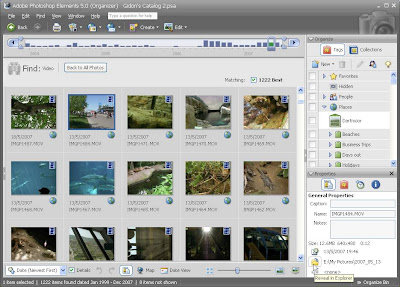
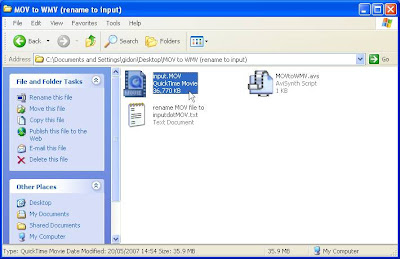
Now in the desktop folder copy and paste the file and rename the copied file "input.MOV". Now download this this settings file and save it in the desktop folder you created. Double click in it and it should load WME with all the right settings (if you're following along and are called gidon ;)). Now hit "encode now" and you should end up with your converted "output.MOV". I rename this to the original filename now with a wmv extension (using the original file for reference). Now I move this file back to the original folder and delete all the video files in the desktop folder. Simple ;)!

I'm using Elements 5 organizer for my photos and video clips. Find the mov file you want and hit the folder icon in the properties ("reveal in Explorer"). Now right-click the file and send it to the desktop folder.

Now in the desktop folder copy and paste the file and rename the copied file "input.MOV". Now download this this settings file and save it in the desktop folder you created. Double click in it and it should load WME with all the right settings (if you're following along and are called gidon ;)). Now hit "encode now" and you should end up with your converted "output.MOV". I rename this to the original filename now with a wmv extension (using the original file for reference). Now I move this file back to the original folder and delete all the video files in the desktop folder. Simple ;)!


Quicktime (mov) to Windows Media Video (wmv)
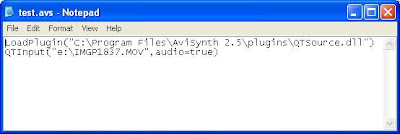
WME doesn't import Quicktime files directly unless they use a cross platform codec like Cinepak or Indeo (and generally they don't). I've mentioned a couple of workarounds earlier - involving uncompressing the QT file to an uncompressed avi. This requires a large chunk of disk space and an additional step. I've found another method which sounds a little complicated but isn't :). We're going to "frameserve" the file to WME. Don't worry what that means; download Avisynth and install it. Now download this Quicktime Import Filter and copy the dll to the plugins folder where Avisynth is installed. Now create a text file with the following text and save it with a .avs extension. You can download this one if you like. Edit the location of the QTsource file and the file you want to convert:
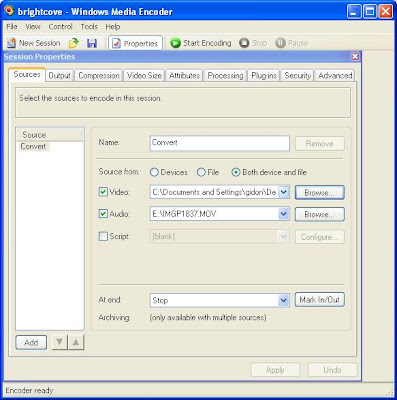
Now load up WME and start create a convert session but don't worry about the settings. In the sources tab select "Both device and file" from "Source from" as below (a strange quirk in WME means you have to do this - I don't understand why) and select the avs file for the video. Accept the same file for the audio if you have Quicktime v.7 installed but if like me you don't have QT 7 and have QT 6 (you need to have at least this), select the original Quicktime file as the audio source. This is because the current version of QTsource doesn't support audio unless you use QT v.7.
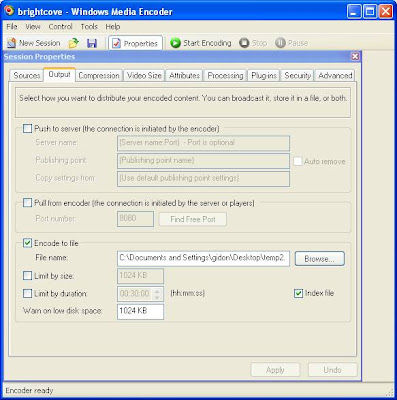
Now select the output file as below:
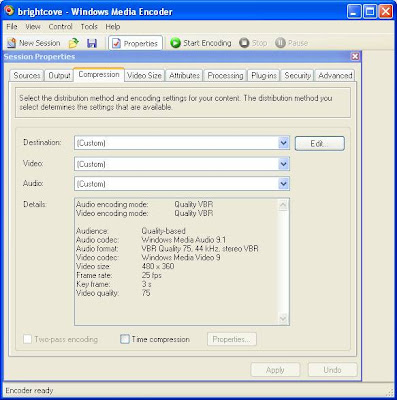
And then your encoding parameters as below:
And then run the encoder. It takes a little longer than usual but it works fine for me. And once you've done it once it's very easy to do it for another file.

Now load up WME and start create a convert session but don't worry about the settings. In the sources tab select "Both device and file" from "Source from" as below (a strange quirk in WME means you have to do this - I don't understand why) and select the avs file for the video. Accept the same file for the audio if you have Quicktime v.7 installed but if like me you don't have QT 7 and have QT 6 (you need to have at least this), select the original Quicktime file as the audio source. This is because the current version of QTsource doesn't support audio unless you use QT v.7.

Now select the output file as below:

And then your encoding parameters as below:

And then run the encoder. It takes a little longer than usual but it works fine for me. And once you've done it once it's very easy to do it for another file.
Subscribe to:
Posts (Atom)